> For the complete documentation index, see [llms.txt](https://docs.hubyte.de/llms.txt). Markdown versions of documentation pages are available by appending `.md` to page URLs; this page is available as [Markdown](https://docs.hubyte.de/faq-fuer-seo/english-documentation/import-export.md).

# CSV import & export

Questions and answers can be exported as a **CSV file**, edited e.g. in Excel or LibreOffice and imported again. This lets you create, translate or revise many questions at once.

You find the functions under **Content > FAQ for SEO > tab Questions & Answers** at the top right:

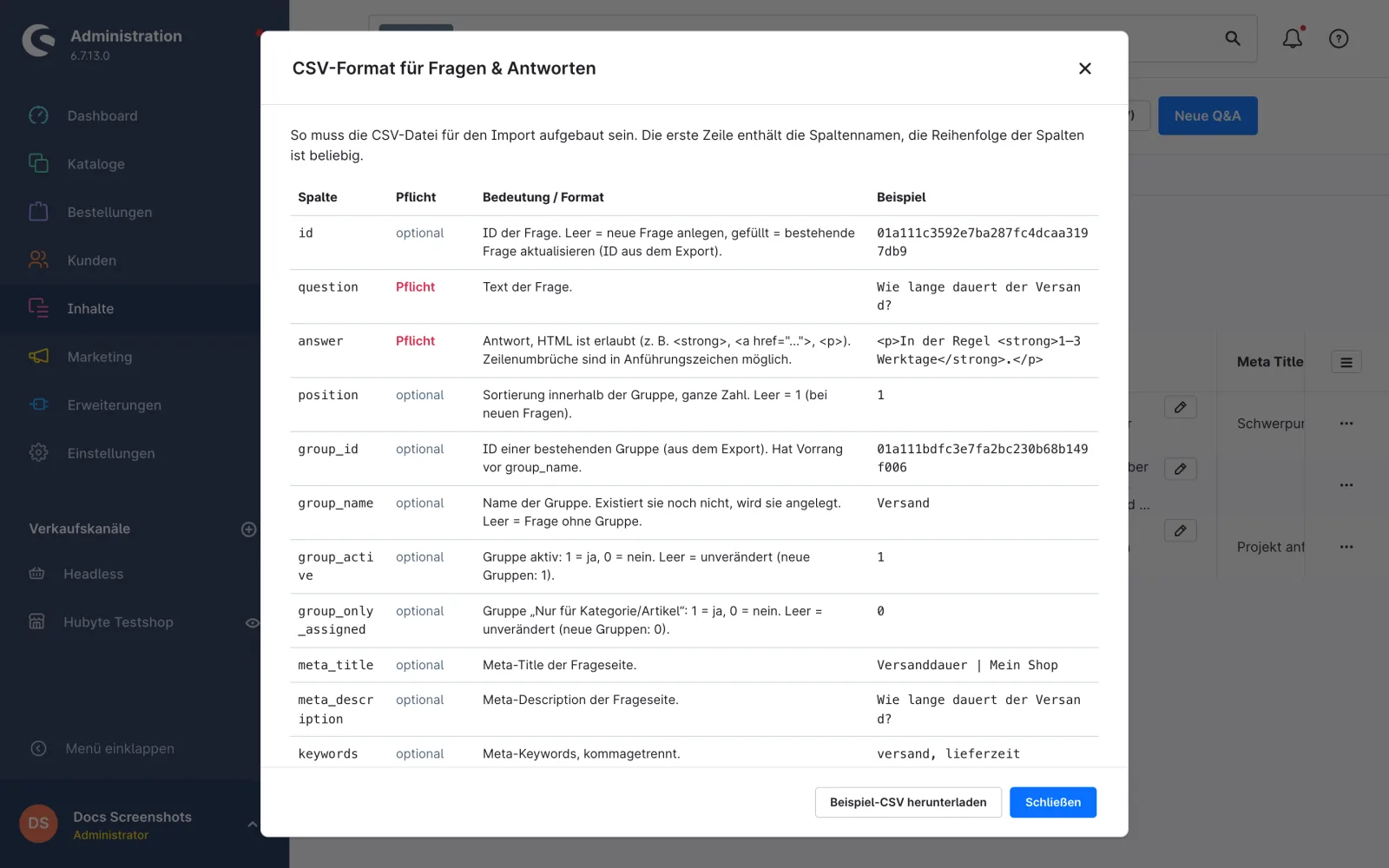
* **CSV preview** – shows all columns with required/optional, meaning and example. **Download sample CSV** gives you a ready-made sample file.
* **Export (CSV)** – downloads all questions incl. group assignment as CSV file.
* **Import (CSV)** – imports a CSV file.

## File format

* CSV with **semicolon (`;`)** as delimiter, character set **UTF-8**. Comma and tab are also detected automatically on import.
* The **first row** contains the column names. The column order does not matter; optional columns that are not needed can be omitted.
* Fields containing semicolons, quotes or line breaks are wrapped in double quotes; a quote inside the text is doubled (`"` → `""`). Excel and LibreOffice do this automatically.

<figure><img src="https://4079068400-files.gitbook.io/~/files/v0/b/gitbook-x-prod.appspot.com/o/spaces%2F4TRaEjMdwEGxIbpj8Eey%2Fuploads%2Fgit-blob-53c63fc882e4f6c91b4004955fcd44b61bd2f60c%2Fsw6-plugin-seo-faq-admin-csv-vorschau.webp?alt=media" alt="CSV preview with all columns"><figcaption><p>CSV preview with all columns</p></figcaption></figure>

## Columns

| Column                | Required     | Meaning / format                                                                                               |
| --------------------- | ------------ | -------------------------------------------------------------------------------------------------------------- |
| `id`                  | optional     | Question ID. **Empty** = create a new question, **filled** = update an existing question (ID from the export). |
| `question`            | **required** | Question text.                                                                                                 |
| `answer`              | **required** | Answer. HTML is allowed, e.g. `<strong>`, `<a href="…">`, `<p>`. Line breaks are possible.                     |
| `position`            | optional     | Sort order within the group, integer. Empty = 1 (for new questions).                                           |
| `group_id`            | optional     | ID of an existing group (from the export). Takes precedence over `group_name`.                                 |
| `group_name`          | optional     | Group name. If it does not exist yet, it is created. Empty = question without group.                           |
| `group_active`        | optional     | Group active: `1` = yes, `0` = no. Empty = unchanged (new groups: `1`).                                        |
| `group_only_assigned` | optional     | Group "Only for category/product": `1` = yes, `0` = no. Empty = unchanged (new groups: `0`).                   |
| `meta_title`          | optional     | Meta title of the question page.                                                                               |
| `meta_description`    | optional     | Meta description of the question page.                                                                         |
| `keywords`            | optional     | Meta keywords, comma separated.                                                                                |

For yes/no values `yes`/`no`, `ja`/`nein` and `true`/`false` are accepted in addition to `1`/`0`.

### Example

```csv
id;question;answer;position;group_id;group_name;group_active;group_only_assigned;meta_title;meta_description;keywords
;How long does shipping take?;"<p>Usually <strong>1–3 working days</strong>.</p>";1;;Shipping;1;0;Shipping time | My shop;How long does shipping take?;shipping, delivery time
;Which sizes is the product available in?;Available in S, M and L.;1;;Product FAQ;1;1;;;
;Question without group;Only question and answer are required.;;;;;;;;
```

## Group assignment on import

The group of a row is determined in this order:

1. **`group_id`** filled → the question is assigned to this existing group. If the ID does not exist, the row is skipped.
2. **`group_name`** filled → an existing group with this name is looked up (case-insensitive). If there is none, it is created.
3. Both empty → the question is imported **without group**.

If `group_active` or `group_only_assigned` are filled, the settings of the group are updated accordingly.

> **Note:** Questions without a group are not shown in the storefront. Assign them to a group after the import.

## Running the import

1. Click **Import (CSV)**.
2. Click **Choose file** and select the CSV file.
3. Click **Start import**.

After the import you see a summary: how many questions were **created**, **updated** or **skipped** and how many **groups were created**. Invalid rows are listed with **row number and reason**, e.g. "Row 4: Frage und Antwort sind Pflichtfelder." (question and answer are required). All other rows are imported anyway.

* The import **never deletes** anything. Questions that are not in the file remain unchanged.
* Import and export use the **language selected at the top right**. For example, you can export the English texts, have them translated and import them again.
* New questions and groups are additionally created in the shop's default language.
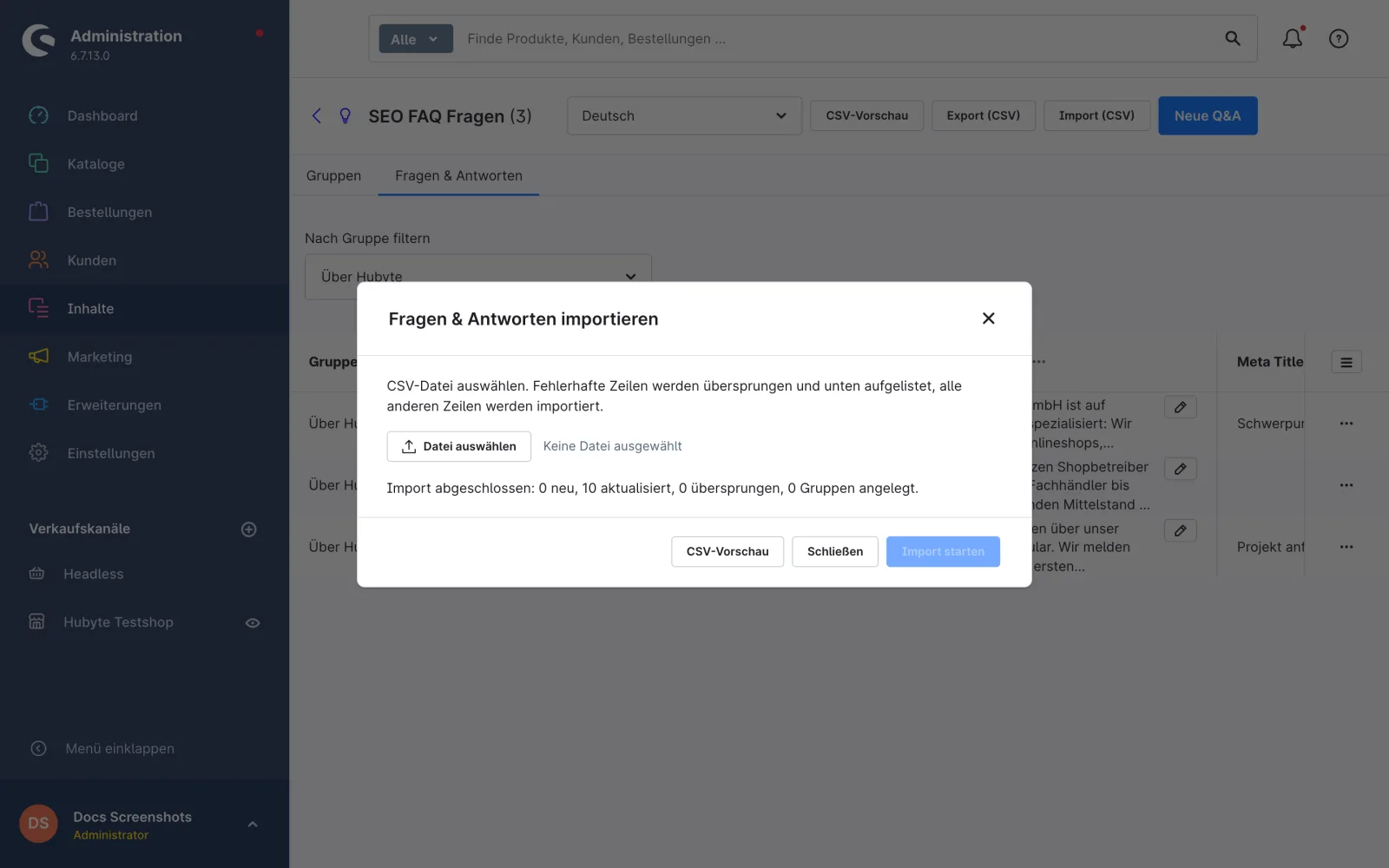
<figure><img src="https://4079068400-files.gitbook.io/~/files/v0/b/gitbook-x-prod.appspot.com/o/spaces%2F4TRaEjMdwEGxIbpj8Eey%2Fuploads%2Fgit-blob-6852198f33d241409636a671b3a5f5dbfdf63394%2Fsw6-plugin-seo-faq-admin-csv-import-ergebnis.webp?alt=media" alt="Import dialog with result"><figcaption><p>Import dialog with result</p></figcaption></figure>

## Recommended workflow

1. Download **Export (CSV)**.
2. Open the file in Excel or LibreOffice and edit it. Add new questions without `id` in new rows.
3. Save as **CSV (comma/character separated), UTF-8**.
4. Upload it again via **Import (CSV)**.
